 LStudio
How to use LStudio
Open app.lstudio.app and sign in with Google or email. A short tour shows you the buttons. Then it is three steps.
-
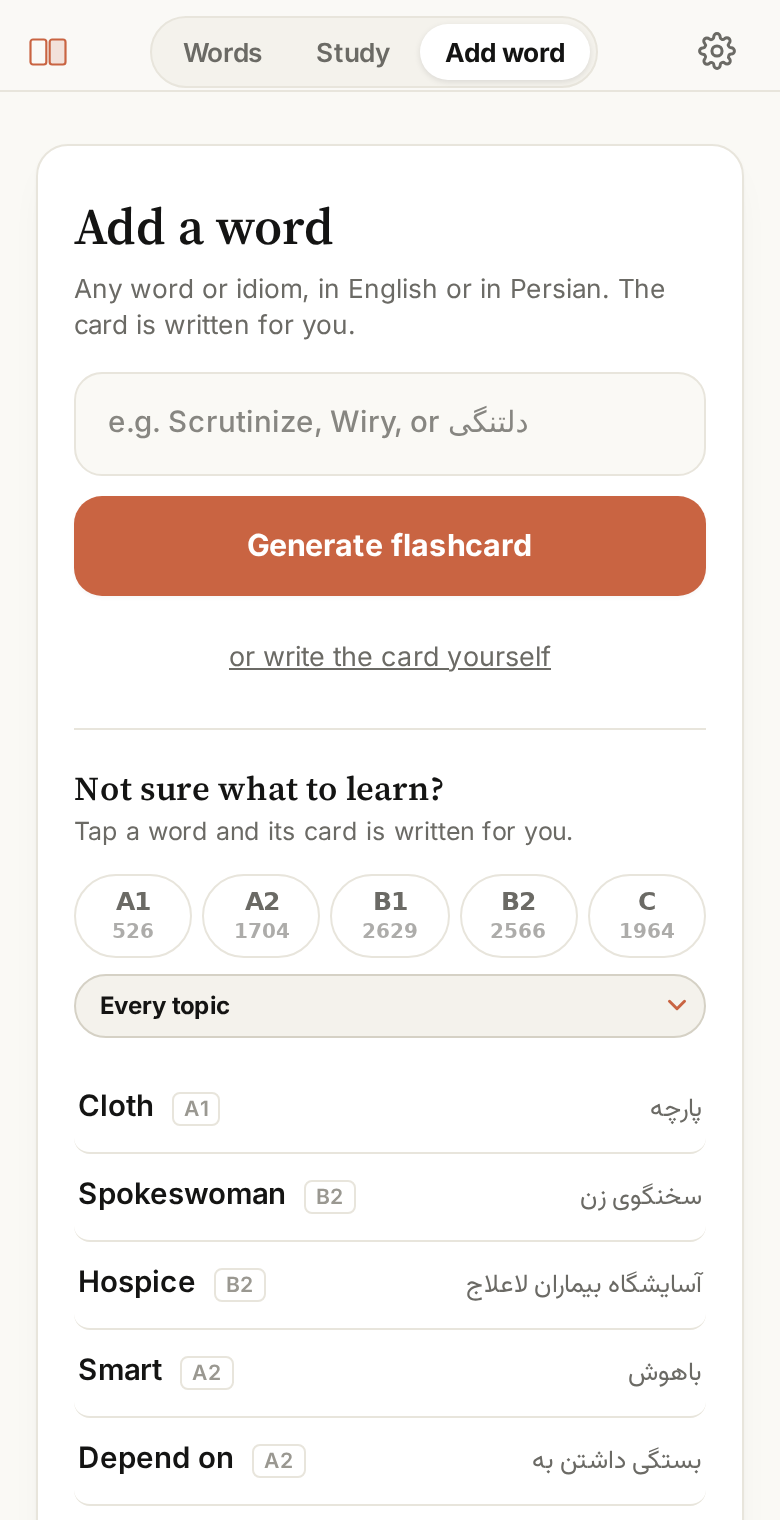 1
1Add a word
In Add word, type a word you met. Press Generate flashcard, then Save.
No word in mind? Pick one from the list under the box.
-
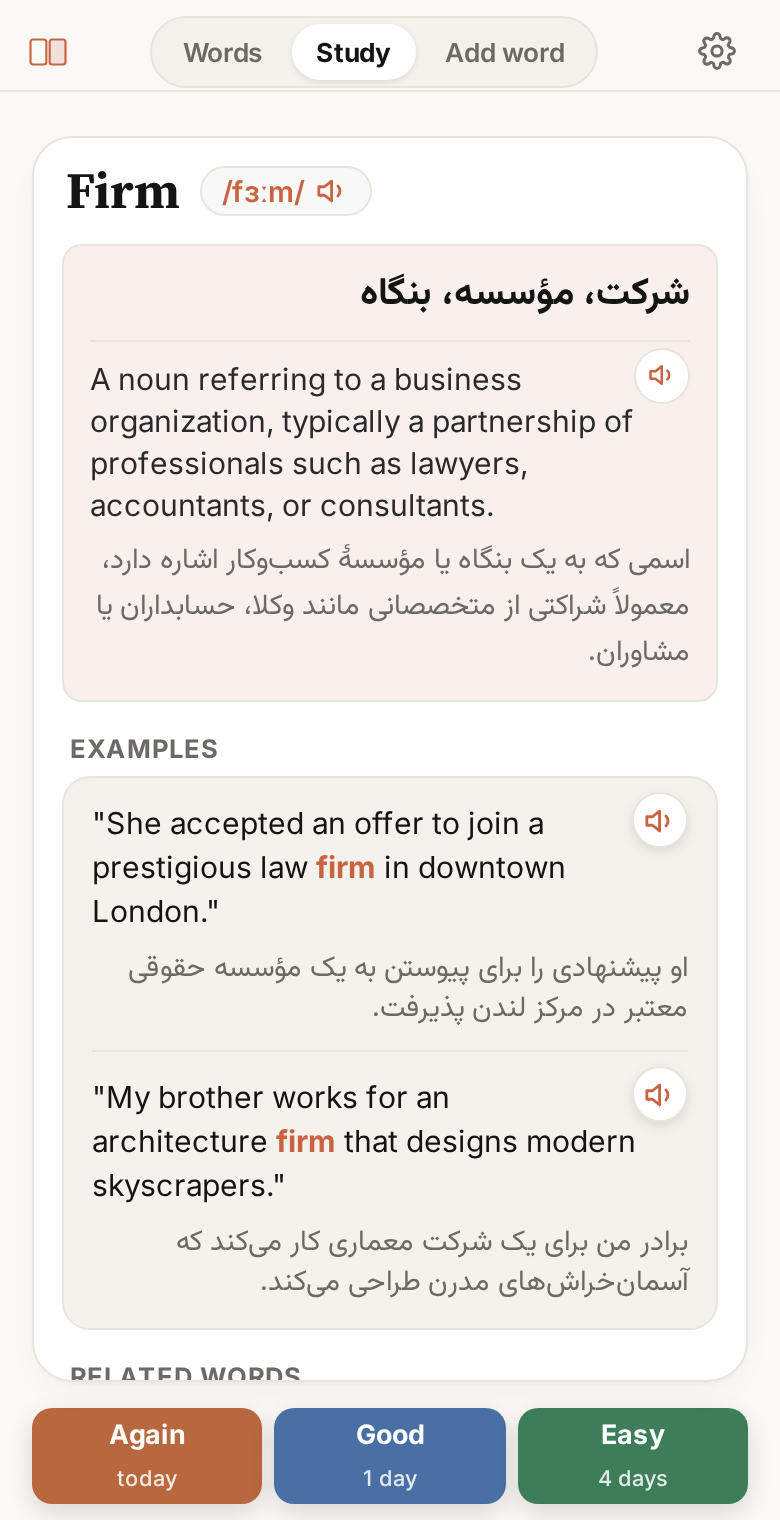 2
2Study it
In Study, guess the missing word. Tap the card to see the answer. Then be honest:
AgainGoodEasyAgain: you forgot. Good: you got it. Easy: you knew it at once.
-
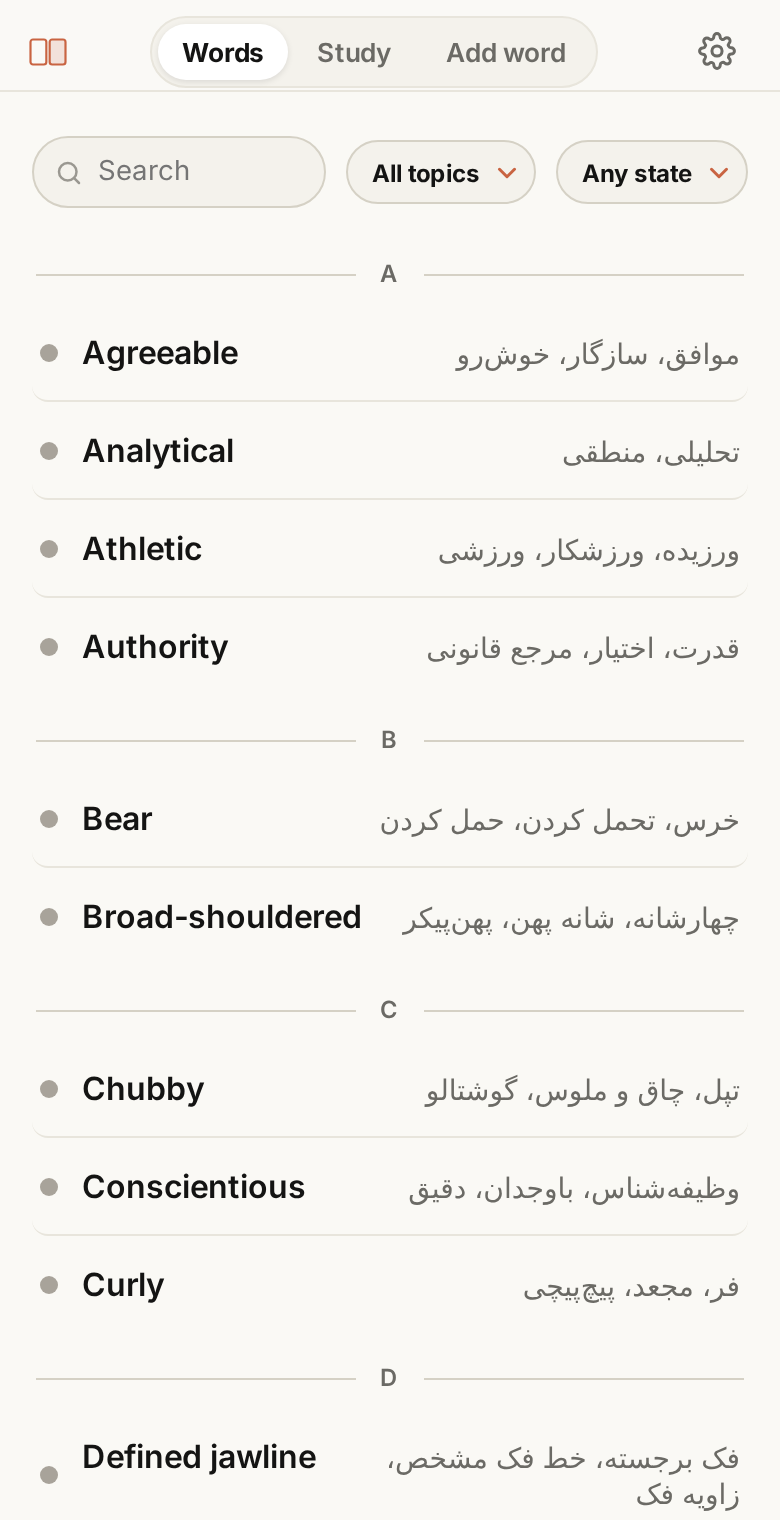 3
3Come back tomorrow
Each word comes back just before you forget it. A few minutes a day is enough.
All your words are in Words.
When you need it
Tap a line to open it.
Group your words with labelsFind the words from one book or course together.
A label is your own group, like a book, a course or “exam”. A word has one label.
- Add one: on a card, tap Add label at the bottom. Pick one of yours, or type a new one.
- Any word: in Words, tap the word, then Add label.
- Many words at once: load a word list and give it a label.
- See them together: in Words, tap All topics and pick your label.
- Remove one: tap the label and leave the box empty.
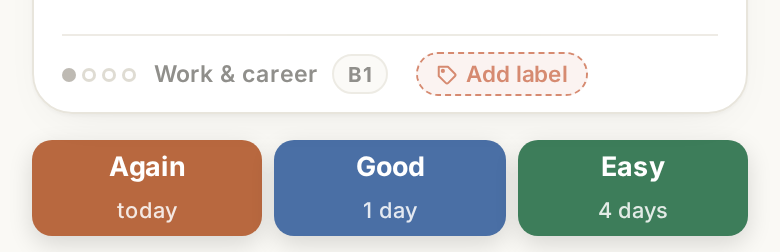
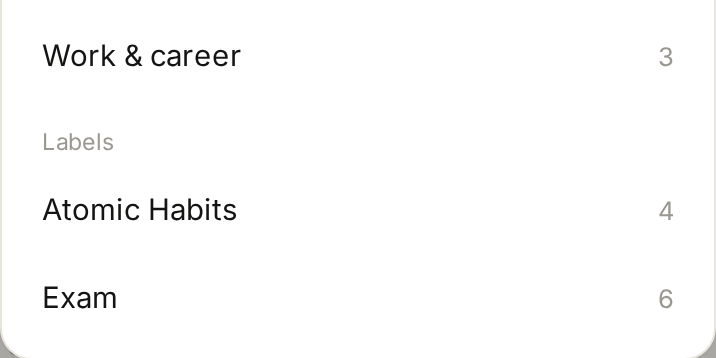
Labels only group words in Words. Study always uses your whole deck.
Your own Gemini keyFree from Google. With it, every new card is free.
A free code from Google. No credit card, about two minutes. With it, Gemini writes every new card for free, with no limit.
- Open aistudio.google.com/apikey and sign in with any Google account.
- Press Create API key, then Copy. It starts with
AIza. - In LStudio: Settings → Your own Gemini key → paste → Save.
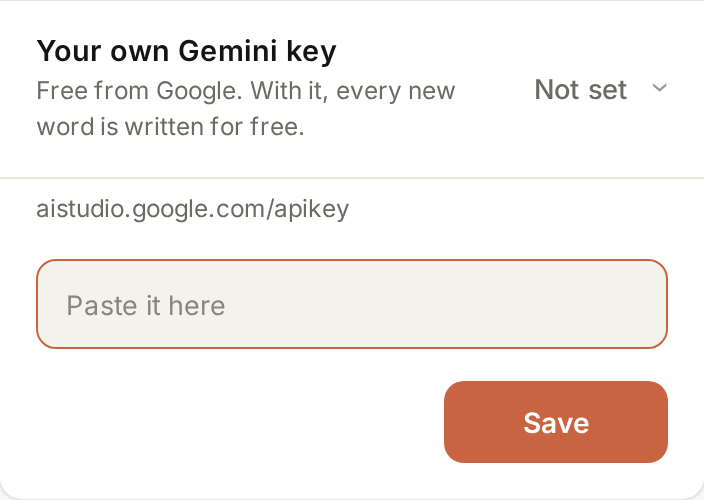
The key stays on this device and goes only to Google. In Iran you need a VPN to make it.
Load your own word listBring many words at once, from a file.
- Make a
.csvor.txtfile, one word per line:Kettle,کتری. Excel and Google Sheets can save as CSV. A sample. - Settings → Load a word list (CSV). Give it a label, then Choose the file and load.
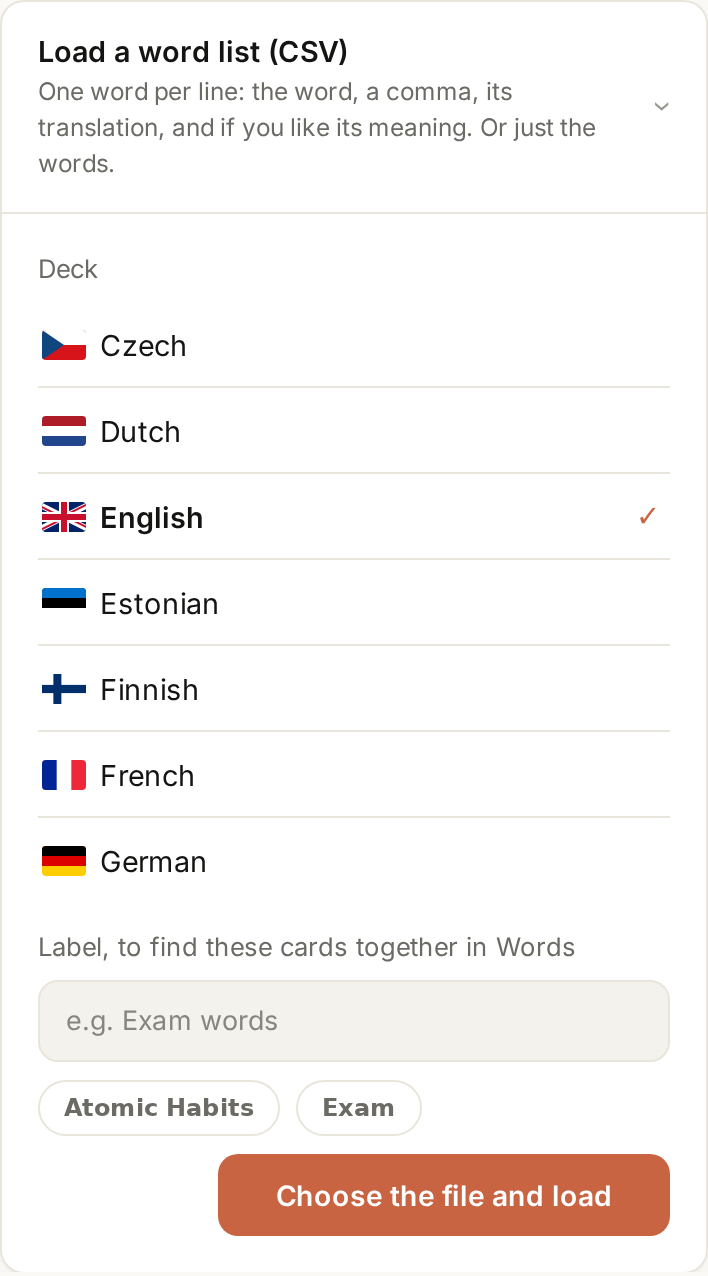
It is free. On such a card, Complete this card writes the rest: examples, notes and more.
Change how you studyNew words a day, seeing the word first, fixing a card.
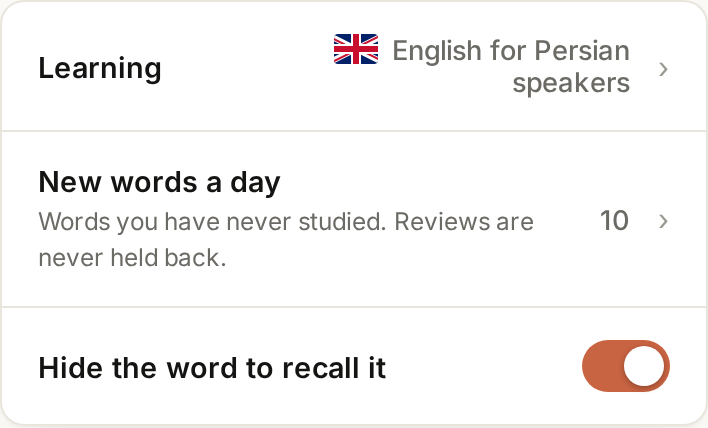
- More or fewer new words: Settings → New words a day (10 at the start). Learn more adds a batch today.
- See the word first: Settings → turn off Hide the word to recall it.
- Fix a card: on its back, Edit this card or Delete this card.
Put it on your phoneOpen it like any other app, offline too.
- Android: Chrome → menu (three dots) → Install app.
- iPhone and iPad: Safari only → Share → Add to Home Screen.
- Computer: Chrome or Edge → the install icon in the address bar.
It works offline and updates by itself.
Change the language or the voiceLearn another language, or hear a different voice.
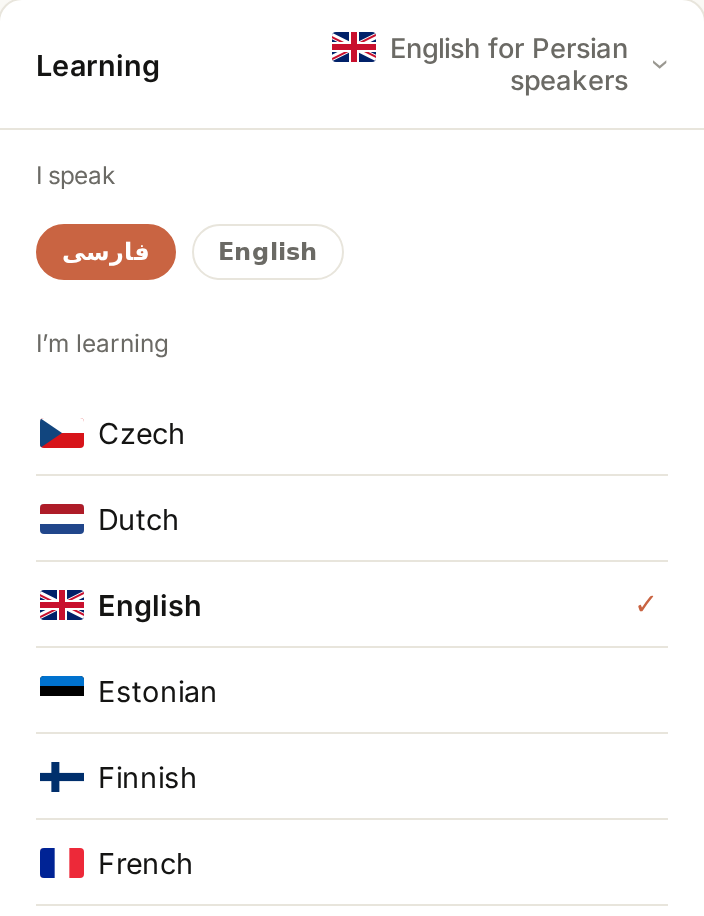
- Language: Settings → Learning → tap a pair. Each pair has its own deck.
- Voice: Settings → Speed, accent and voice.
You speak Persian or English. You learn English, French, Estonian, Czech, Dutch, German or Finnish.
Is it free?Yes. Here is how new cards are made.
Everything is free. New cards that Gemini writes for you come in two ways:
- 10 free words: they start when you sign in and add a word.
- Your own Gemini key: also free, and with no limit.
Keep your cards safeBackup, guest cards and working offline.
- Signed in: your cards are backed up after every change, on every device you use.
- Guest: your cards are on this device only. Sign in, then Settings → Bring guest cards here.
- Offline: everything works except new cards from Gemini. The backup waits for the internet.
Something went wrongA card was not made, or the app looks old.
- The card was not made: the app says why. Usually: no free words left and no key.
- The app looks old: Settings → Update ready, or reopen the app.
- Anything else: Settings → Send feedback, or support@lstudio.app.
PrivacyWhat we get, and what we never get.
- Your cards and labels stay on your device, with a backup on our server when you are signed in.
- We get only the word you type for a card and the phrase you play.
- Never: camera, microphone, location, contacts or files.